Invoice to payment
This guide follows a customer amount from invoice to payment. Your accountant must review journals, taxes, accounts, opening balances, and local obligations before live use.
Create and check the invoice
Open Accounting > Customers > Invoices. Create an invoice directly, or open one prepared from a sales order. Check the customer, invoice and due dates, currency, product lines, income accounts, taxes, payment terms, and source. Use Preview to inspect the customer document.
Confirm only when the business event is correct. In Cayamanan the action is Confirm, and the document becomes Posted. A posted invoice is an accounting record; correct mistakes with the approved credit-note or reset process instead of silently replacing history.
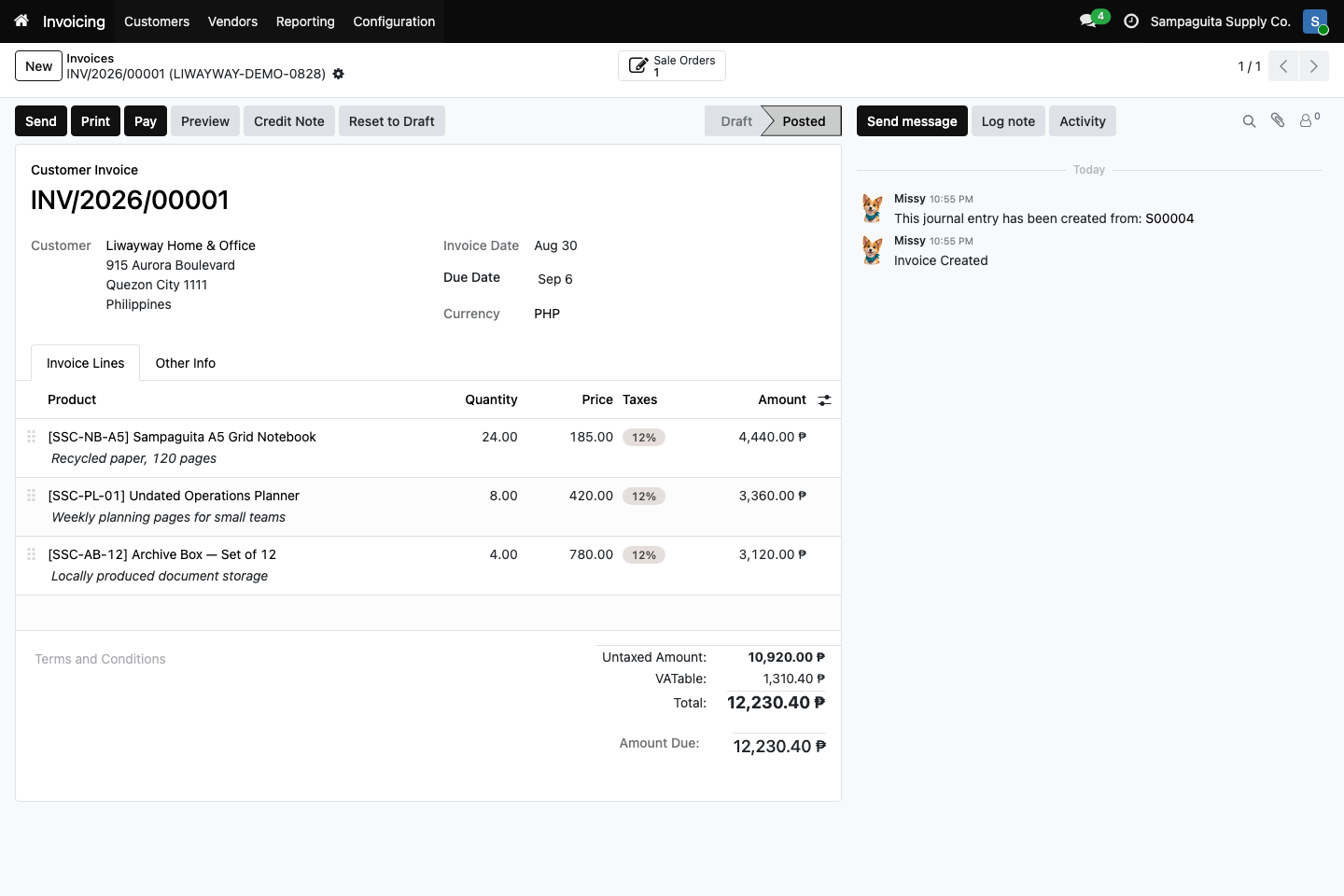
Posted customer invoice INV/2026/00001 from sales order S00004 in
the approved fictional demo company. Open the image for the full-resolution
original.
You should now see: Posted as the invoice stage, the customer, dates, currency, invoice lines, taxes, totals, amount due, and a Sale Orders link. The visible amount due confirms that this image is not evidence of payment.
Record the payment
Open the posted invoice and choose Pay or Register Payment, depending on the interface. Choose the correct journal, payment method, amount, currency, and date from the actual receipt. Confirm the payment. The invoice payment state changes when the amount is matched.
Review customer balances under Accounting > Reporting. Bank reconciliation matches imported or synchronized bank activity with open invoices, but the available file formats and connections depend on your bank and the apps in use.
In the fictional demo, invoice INV/2026/00001 comes from sales order S00004. Follow the source link to confirm that Sales, delivery, and finance are looking at the same business event.