Inventory counts and transfers
Cayamanan Inventory records product movement between locations. A quantity is useful only when products, units, locations, receipts, deliveries, and counts are maintained consistently.
Complete an internal transfer
Open Inventory, then the operations view for Internal Transfers.
Create a transfer and choose the source and destination locations.
Add the products and expected quantities.
When the products physically move, enter the completed quantities.
Validate the transfer and check that its status is Done.
Do not use an internal transfer to hide a missing item. Investigate unexplained differences and record the approved reason.
Perform an inventory count
Choose a clear cut-off time and stop movement in the count area.
Open the inventory counting view available in your Cayamanan 19.0 version.
Filter to the intended location and products.
Enter physical quantities from the signed count sheet or approved device.
Review differences before applying them.
Apply only the approved count and retain evidence required by company policy.
Check negative stock, overdue transfers, unexpected units, and duplicate product records before treating a system quantity as final. For opening stock, complete a count in a test database with fictional data first and reconcile totals by product and location.
Receipts and deliveries
For incoming goods, follow RFQ to supplier bill. For customer shipments, follow Quotation to payment. Always record what actually moved. Ordered quantity is not proof of receipt, and a confirmed sale is not proof of delivery.
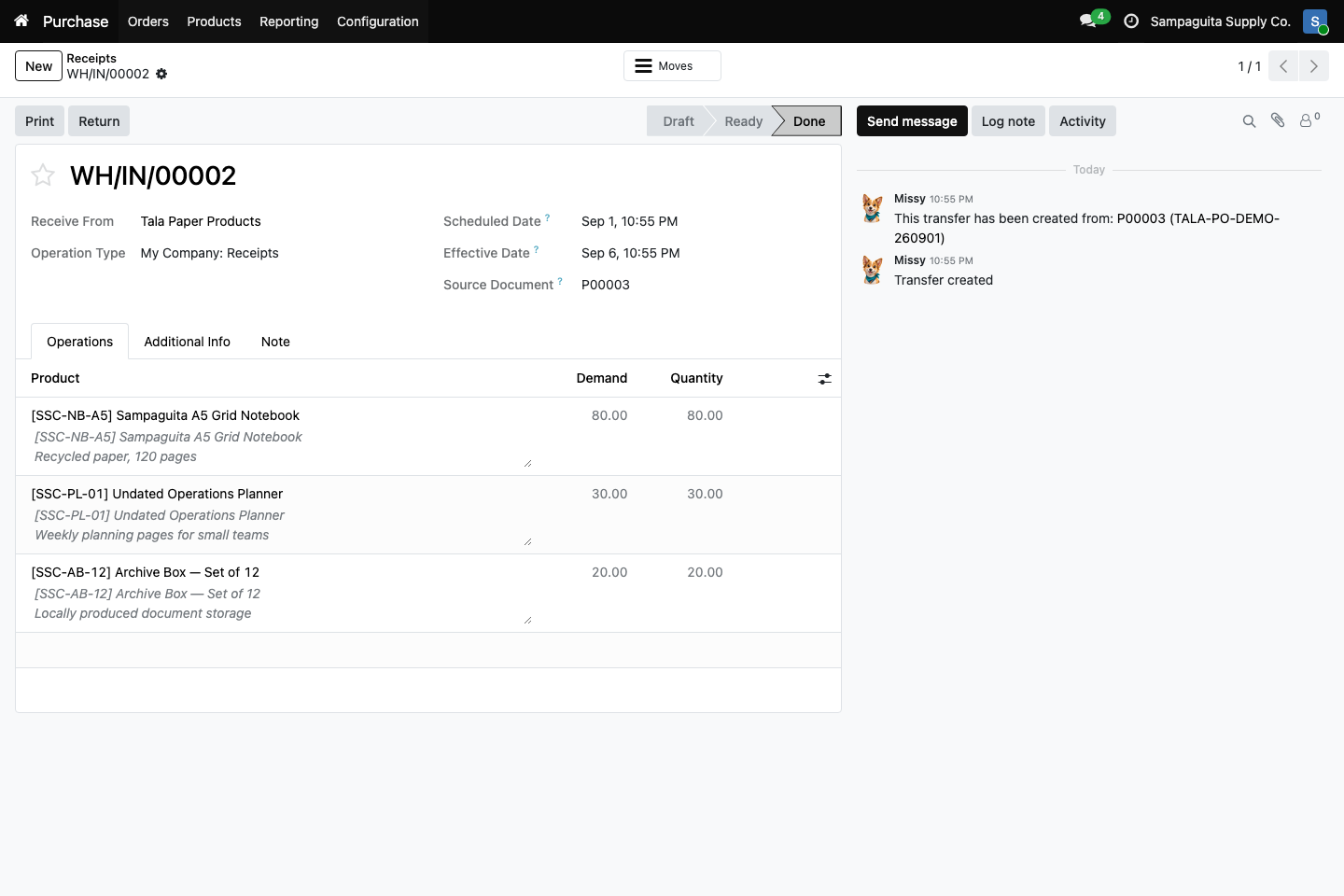
Incoming receipt WH/IN/00002 linked to purchase order P00003 in the
approved fictional demo company. Open the image for the full-resolution
original.
You should now see: Done as the receipt status, operation type Receipts, the purchase order as source, and the quantities actually received. This image does not show an internal transfer, inventory count, or customer delivery.