Quotation to payment
This guide follows the standard Sales, Inventory, and Accounting handoff. The buttons you see depend on the apps in use, your access, and invoicing policy.
1. Prepare the quotation
Open Sales, choose Quotations, and select New. Choose the customer, then add products, quantities, prices, taxes, payment terms, and a quotation expiry when your process uses one. Read the customer and delivery addresses. Preview the quotation before sending it.
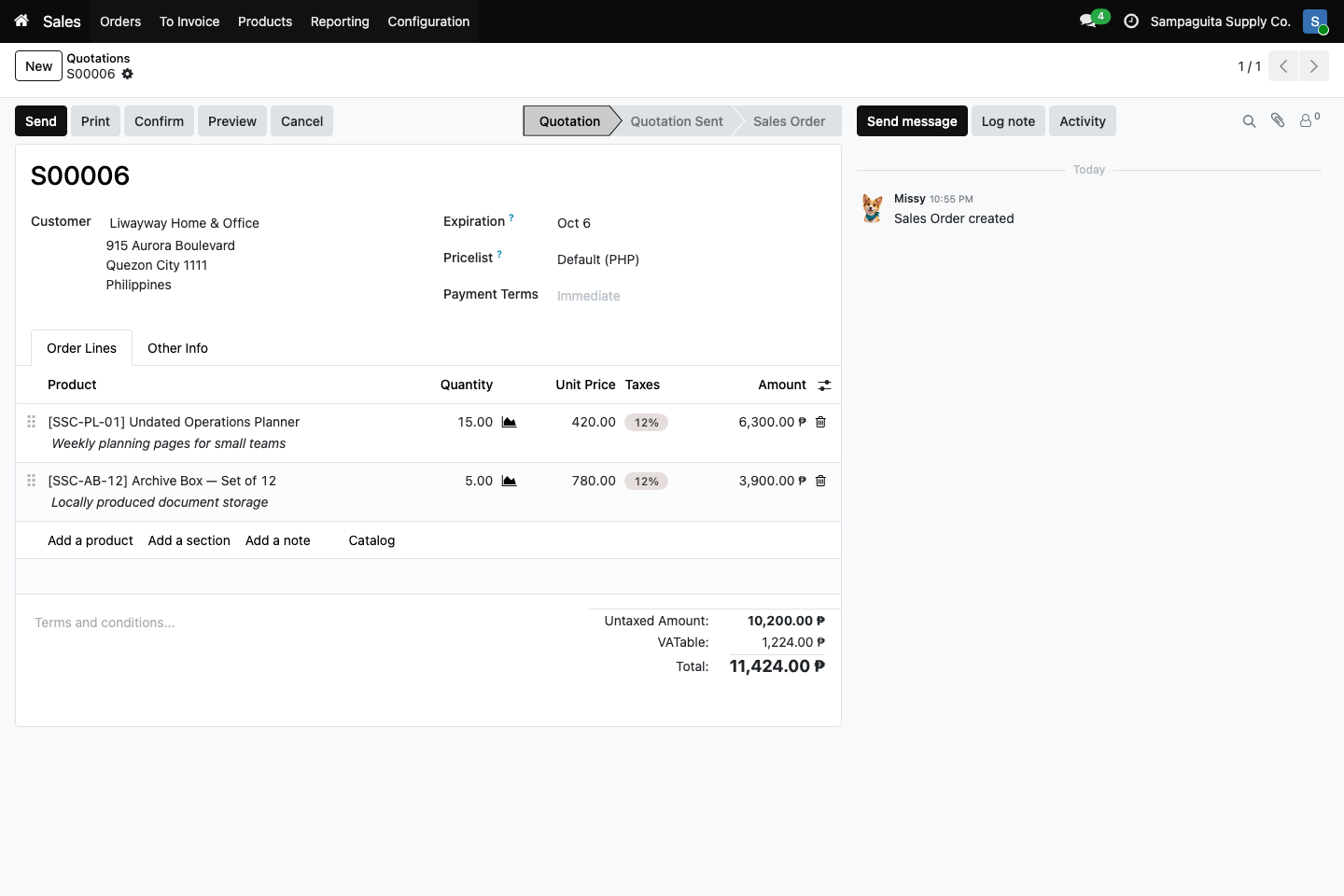
Quotation S00006 in the approved fictional demo company. Open the image
for the full-resolution original.
You should now see: a quotation number, customer, product lines, quantities, prices, taxes, and total ready for review. The Quotation stage is active; the screen does not show a confirmed sale.
2. Confirm the sales order
Confirm only after the customer accepts the offer. Cayamanan changes the quotation into a Sales Order and keeps the same product lines and customer context. A confirmed stockable order can create a Delivery when Inventory is installed.
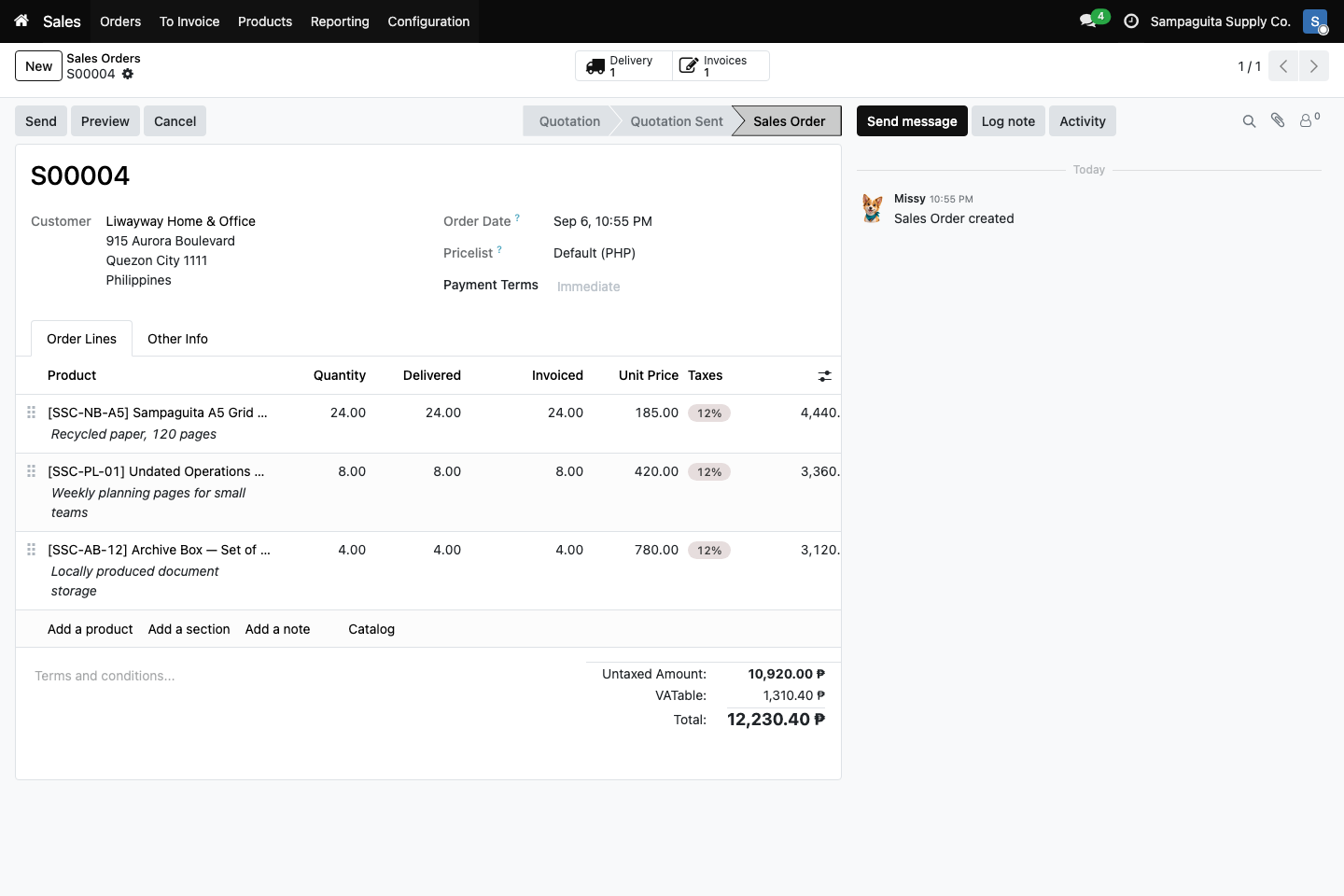
Confirmed sales order S00004 in the approved fictional demo company. The
smart buttons connect the order to its delivery and invoice records. Open
the image for the full-resolution original. This is a separate example from
quotation S00006 above; confirming a quotation normally keeps its number.
You should now see: Sales Order as the active stage and the Delivery and Invoices smart buttons. Open those linked records to check their own status; the buttons alone do not prove that delivery or payment is complete.
3. Complete the delivery
Open the order’s Delivery smart button. Warehouse users check the operation, source and destination locations, products, and actual quantities. Validate what physically left the warehouse, not simply what the customer ordered. Partial delivery may create remaining work, depending on the chosen backorder action.
4. Create and post the invoice
Return to the sales order. Create the invoice when the invoicing policy says the order or delivered quantity is ready to bill. In Accounting, verify customer, invoice and due dates, currency, products, taxes, and total. Post only after the document is correct. Posting creates the accounting entry; it does not mean the customer has paid.
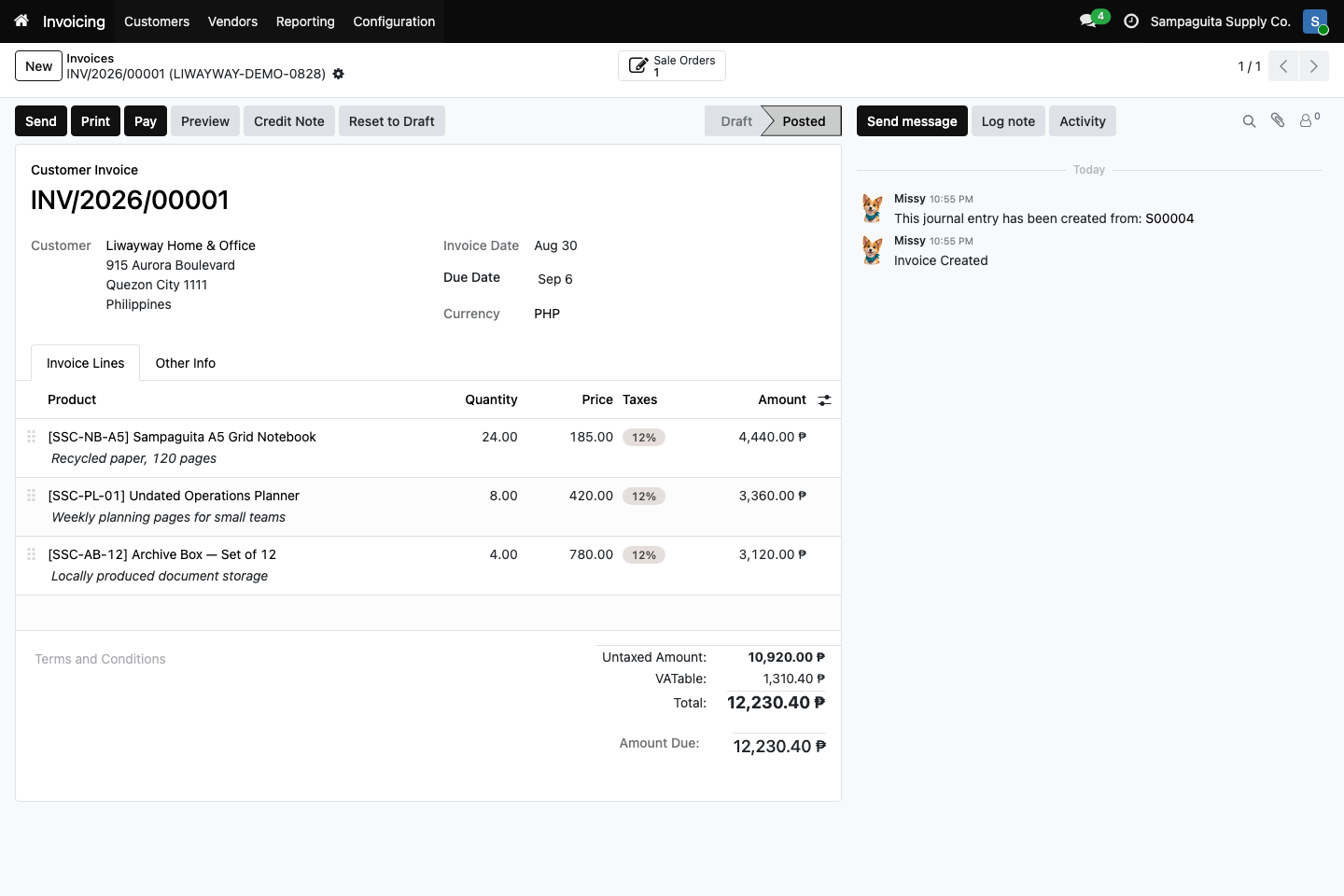
Posted customer invoice INV/2026/00001 from sales order S00004 in
the approved fictional demo company. Open the image for the full-resolution
original.
You should now see: the Posted stage, customer and due dates, invoice lines, PHP totals, amount due, and a Sale Orders link. Posted is not the same as paid; this screenshot contains no payment or reconciliation evidence.
5. Record the payment
Use the invoice’s payment action or the approved bank workflow. Choose the correct journal, amount, date, and reference. Confirm that the invoice shows the expected payment status. Imported bank transactions still require review and reconciliation according to your accounting procedure.
What to check
The sales order, delivery, and invoice should remain linked. Compare ordered,
delivered, and invoiced quantities. Investigate differences instead of forcing
documents to appear complete. The fictional demo shows this connection on
S00004 and INV/2026/00001.